


The Groups feature lets you create custom spaces for leadership teams to upload and manage documents, schedule group-related events, and communicate with each other through a single dashboard.
This support article will show you how to navigate and use the various features available for groups.
To learn how to create a group as a district administrator, please read: How do I create a group on the district?
-
To begin, log in to your account through your district homepage, then click on Member Area in the top right-hand corner. Alternatively, click here to go directly to the ClubRunner login page.
-
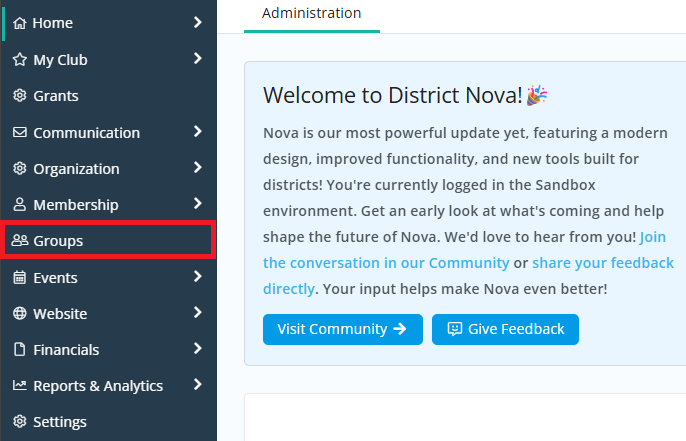
Once inside the members area, click Groups in the left-hand navigation menu.
-
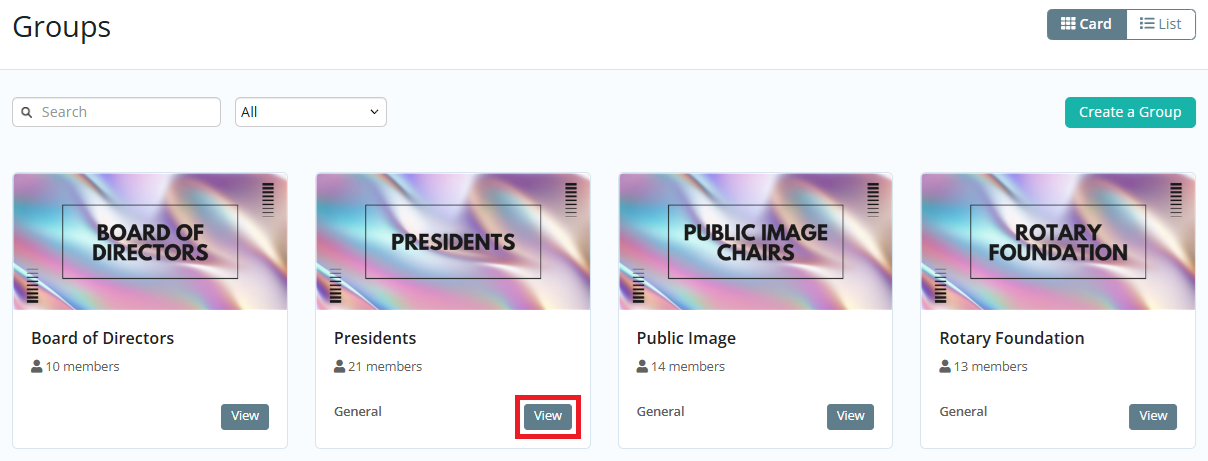
Click View on the group you wish to view content for.
-
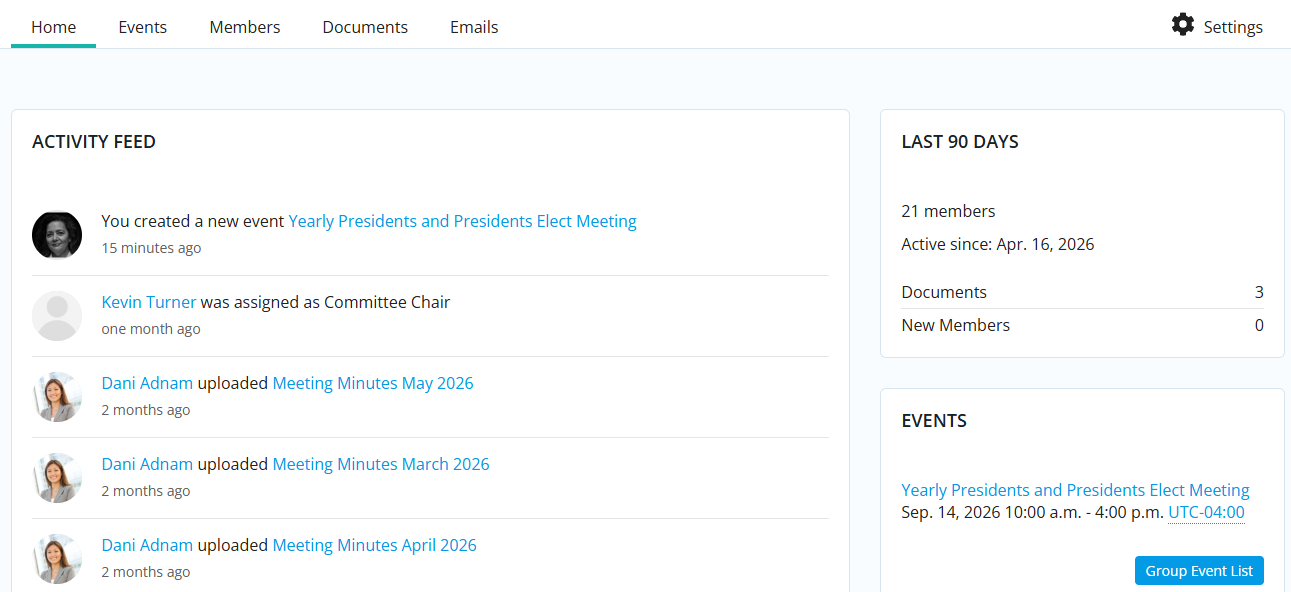
You are now on the Home tab of the group and may click the other available tabs to navigate the group features, as described below.
Home
The Home tab of any group will display an activity feed of recent changes to the group, such as new members, events, emails, or changes to the group's settings. On this tab you may also find a list of the group leaders and upcoming events.
Events
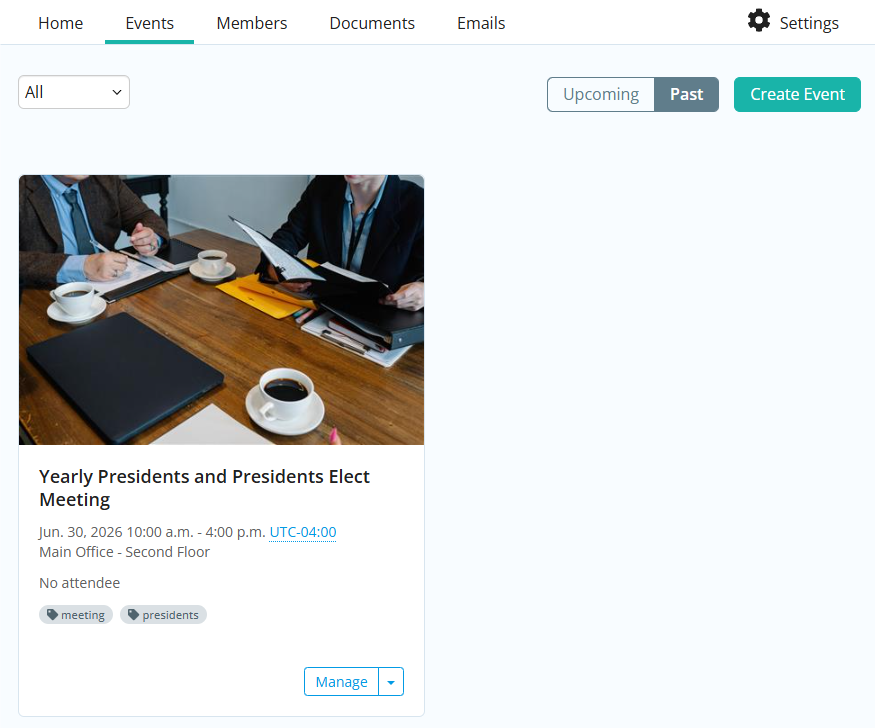
The Events tab allows group members to create Cloud Events specific to the group's interest. These events are only accessible from the group Events tab and do not appear on the district event calendar, though you may still invite anyone to register via email or direct link to the event.
For more information, please read the support article: How can I create a Cloud Event?
Members
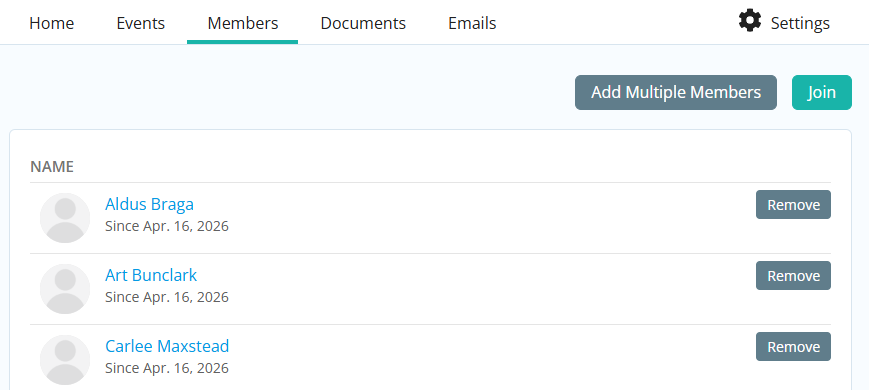
The Members tab displays the list of group members and allows individuals to join the group using the Join button if public membership is enabled. District administrators may use the Add Multiple Members button to manually enroll members into the group, or click Remove to remove members as needed. If the group is set to public membership, members can always rejoin even if they are removed.
Documents
The Documents tab allows the group to manage its own shared files within an organized folder structure.
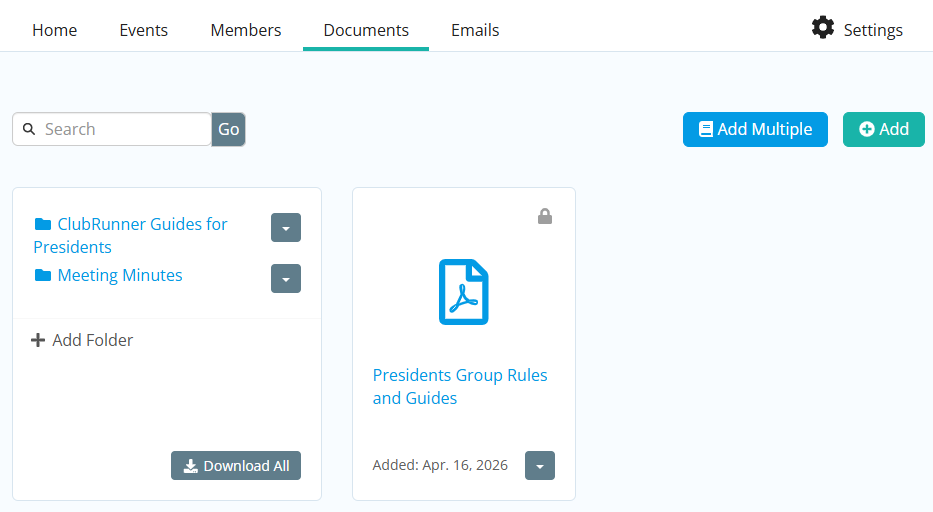
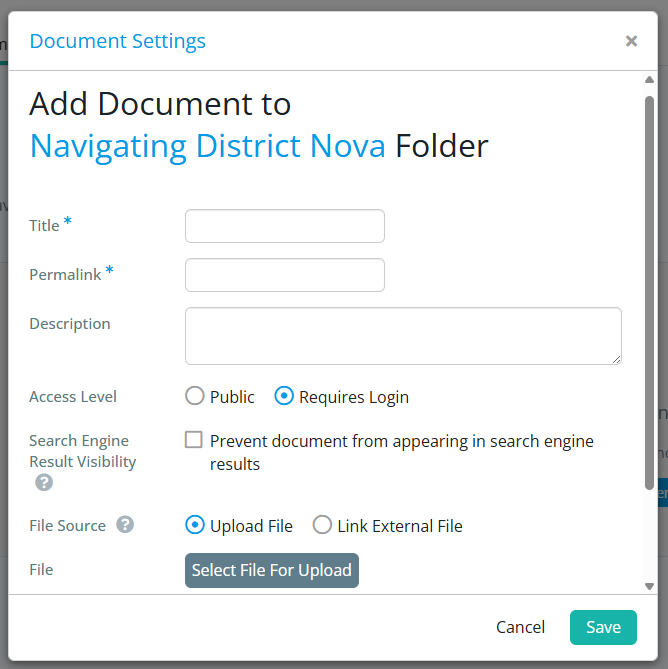
Click the Add button to open a window where you may upload new files or add folders to the group's documents, filling out the appropriate information in the upload form.
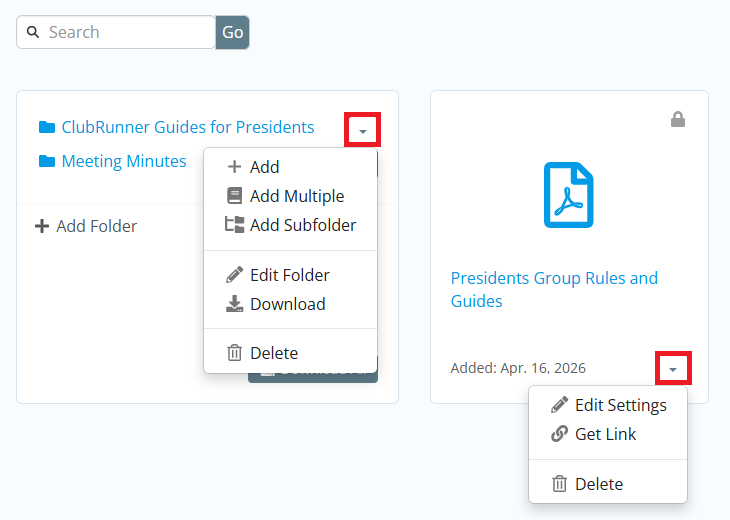
You may use the drop-down arrows to view options for documents and folders.
When viewing documents within folders, use the nested links under the search bar to quickly navigate to a previous or top-level folder.
For more information, please read the support article: How do I manage club documents?
Emails
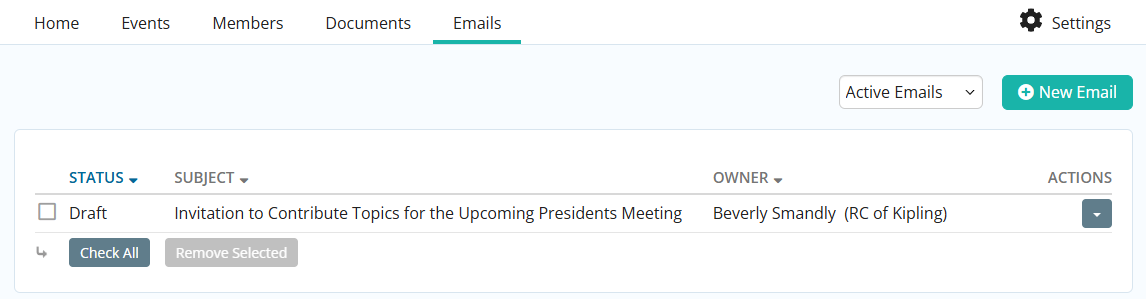
The Emails tab allows you to compose emails specific to the group's members and interests, and use smart lists to target group members and administrators as recipients.
For more information, please read the support article: How do I compose and send an email?
Settings
The Settings gear on the right-hand side of the group allows district administrators and group admins to manage the group settings.

For more information, please read the support article: How do I update the settings for a group on the district?